Media Administration
Use this guide to manage imported media, repair lyric timing, edit video files, and convert CD+G karaoke formats.
Contents
- Import and Export Media
- Resynchronize Inaccurate WhisperX Lyrics
- Adjust Video Duration and Metadata
- Modernize CD+G Formats
Import and Export Media
You can download all artifacts created by the application for karaoke use, including separated vocals and word-synced JSON lyrics.
- Go to
/mediaand click Edit. - Expand File Management.
- Click Download Zip to download all artifacts, or download individual files.
- Delete sidecar files such as vocals and lyrics when they are no longer needed.
The Download Zip option creates an archive of the media artifacts. You can upload this archive through /upload to restore the karaoke media as a backup.
For externally managed media, the application expects the following sidecar naming convention:
<song>.mp4: the main video file. When importing a vocal-separated video, the video should contain only the instrumental audio.<song>.vocals.mp3: the separated vocal audio.<song>.jsonor<song>.lrc: the word-synced or standard lyrics file. The JSON file is expected to be generated by WhisperX.
Example WhisperX JSON:
{"segments":[{"start":0.0,"end":5.0,"text":"Hello, world!","words":[{"start":0.0,"end":2.5,"word":"Hello"},{"start":2.5,"end":5.0,"word":"world"}]}]}
Non-WhisperX JSON
If the JSON file does not conform to the WhisperX format or is malformed, it will not be processed and the lyrics will not work.
Copy the files to the media folder, then scan the library to discover the new tracks.
Resynchronize Inaccurate WhisperX Lyrics
Major synchronization issues
If the lyrics move rapidly and are out of sync, WhisperX may have detected the wrong language and used the wrong model for alignment. Delete the existing JSON lyrics, then run WhisperX alignment again with a manually specified language override.
- On the media editor page, expand File Management and delete the JSON lyrics.
- Enable Lyrics Sync again and turn on WhisperX Align.
- Manually specify a language code in WhisperX Language Override.
For smaller synchronization issues, such as a word ending too early or lingering until the next chorus, you can refine the timing with third-party tools. Download the .vocals.mp3 file as a timing reference. When you finish editing, upload the corresponding file and the server will process it back into JSON.
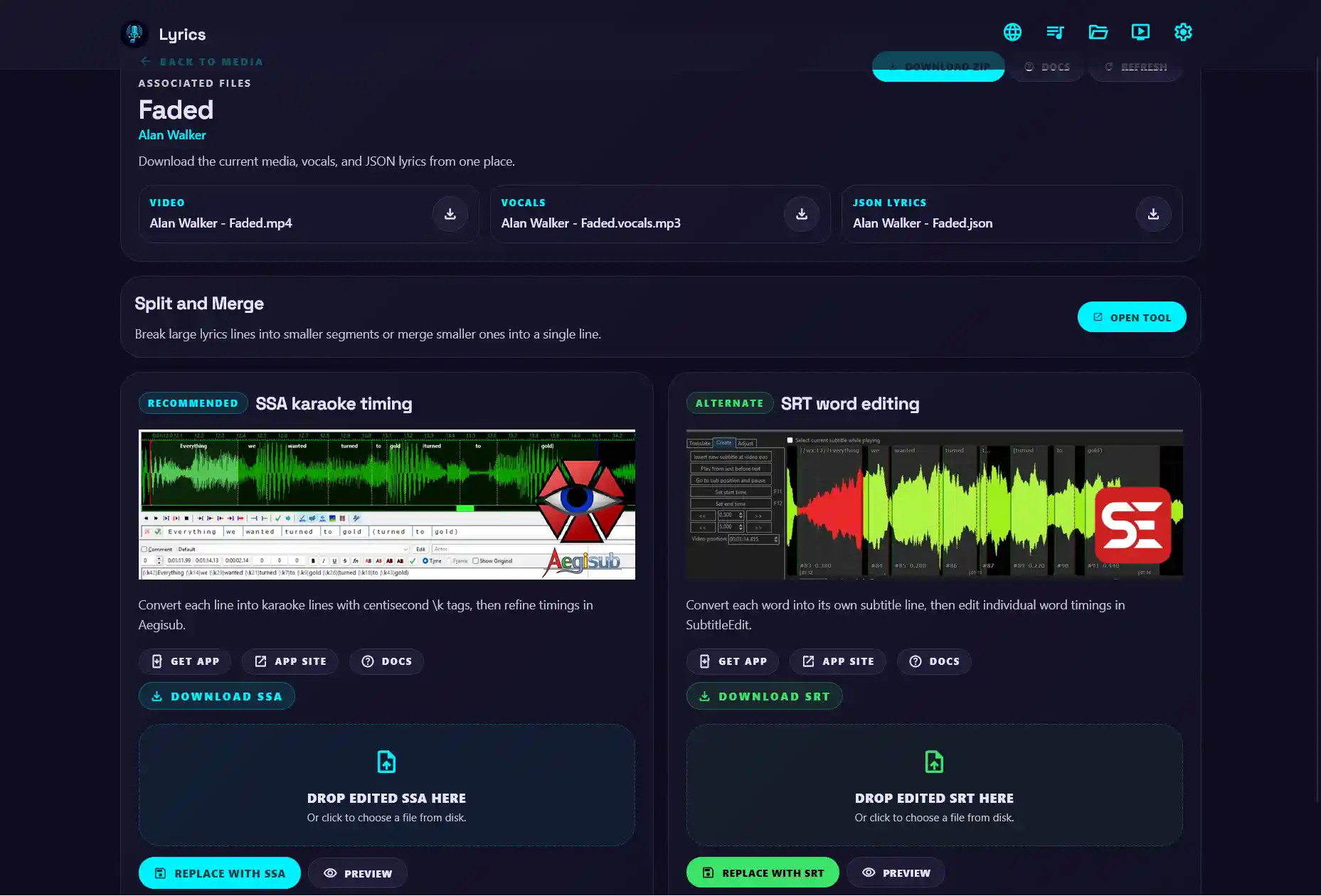
SSA Karaoke Timing
The application exports an .ass subtitle file with karaoke timing. You can use Aegisub to refine the timing and export a new .ass file.

- Import the vocals and
.assfile into Aegisub. - Enable Karaoke Timing to edit word-level timing.
- Disable it to edit line-level timing.
- Left-click to set the in point and right-click to set the out point for a line.
- Press the space bar to preview the timing with the vocals.
This is not a full Aegisub tutorial.
SRT Word Editing
The application also exports an .srt subtitle file with timing markers, where each word is a separate subtitle entry. You can use Subtitle Edit to refine the timing and export a new .srt file.

- Import the vocals and
.srtfile into Subtitle Edit. - Subtitle Edit should generate the vocal waveform automatically.
- Drag each word's start and end time to change its timing.
Do not delete //wx:meta and //wx:time lines
These line markers are required to rebuild the word-synced lyrics.
Split and Merge Lines
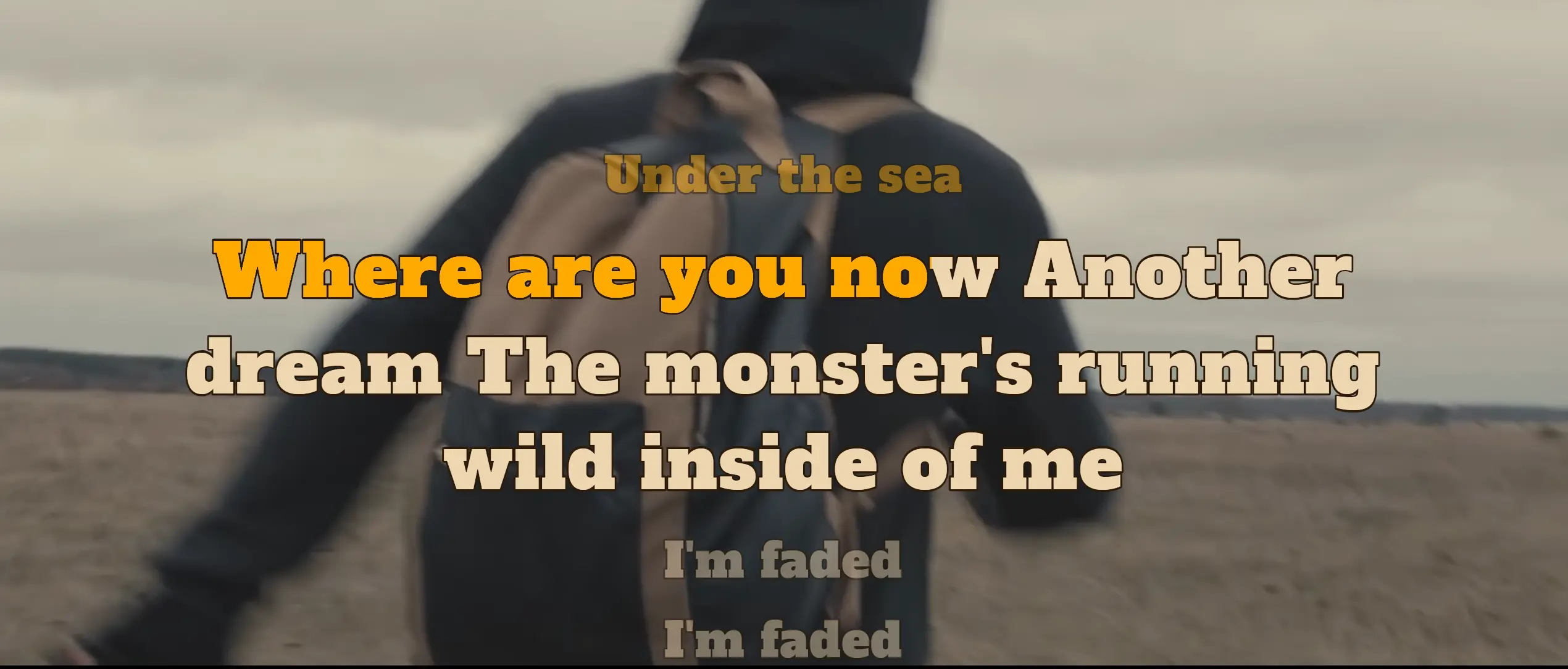
Sometimes the original lyrics contain long lines that do not break cleanly and appear as multiple lines in the karaoke display. Keep the number of characters per karaoke line consistent by adjusting the layout or rewrapping the lyrics.
You can partially fix this by reducing the text size or increasing the maximum width.
There are two ways to fix the lines:
- Set Rewrap Lyrics Lines during WhisperX processing on the Create AI Karaoke page. The default is 36 characters per line for English and 12 for CJK. Choose a limit that works best with your lyric presets and customization.
- Use split and merge manually. Split a long line at the word where it flows best, or combine multiple smaller lines.
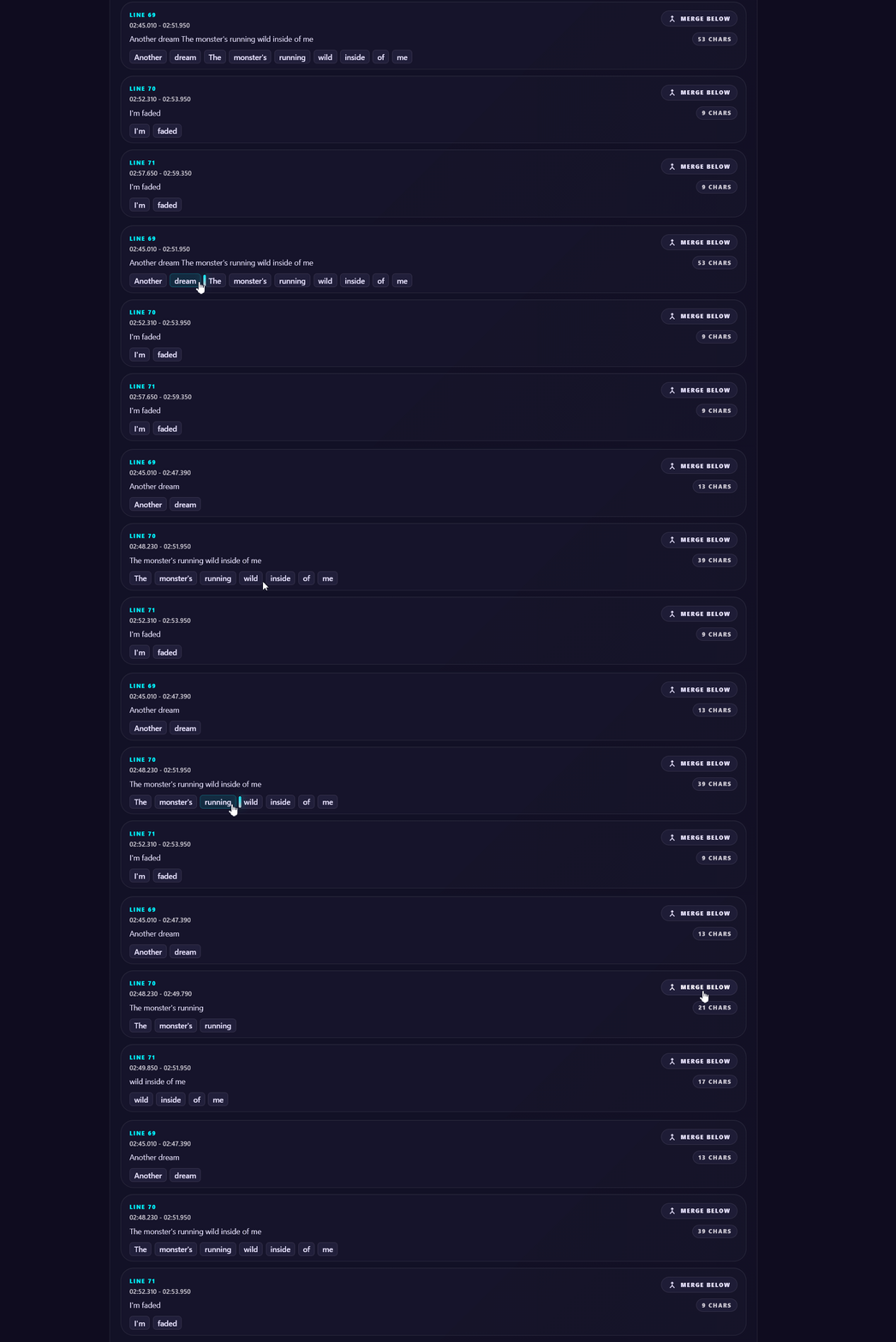
- In the Lyrics Editor, choose Split and Merge to open the split-and-merge editor.
- Use Auto Process and specify a Max Line Length to automatically split lines that exceed the limit.
- Click a word to split the line after that word.
- Click Merge Below to combine the current line with the next line.
- Undo any change if needed.
Adjust Video Duration and Metadata
When a YouTube video is downloaded, it retains the default metadata: the title is the video title, the artist is blank, and the filename is <video_title>.mp4. This may not be ideal for library organization. The video is also downloaded as-is, and many karaoke videos contain intros and outros that are not suitable for seamless karaoke.
See Modify Existing Video for information about adjusting video metadata.
Lossless Trim
Lossless trim is not and cannot be precise
The application uses I-frames to trim the video without re-encoding it. Cuts must therefore occur at an I-frame. It is not possible to trim at a specific point; the application finds the nearest I-frame instead.
Irreversible trim
Trimming is irreversible. Once the video is trimmed, the original video is lost.
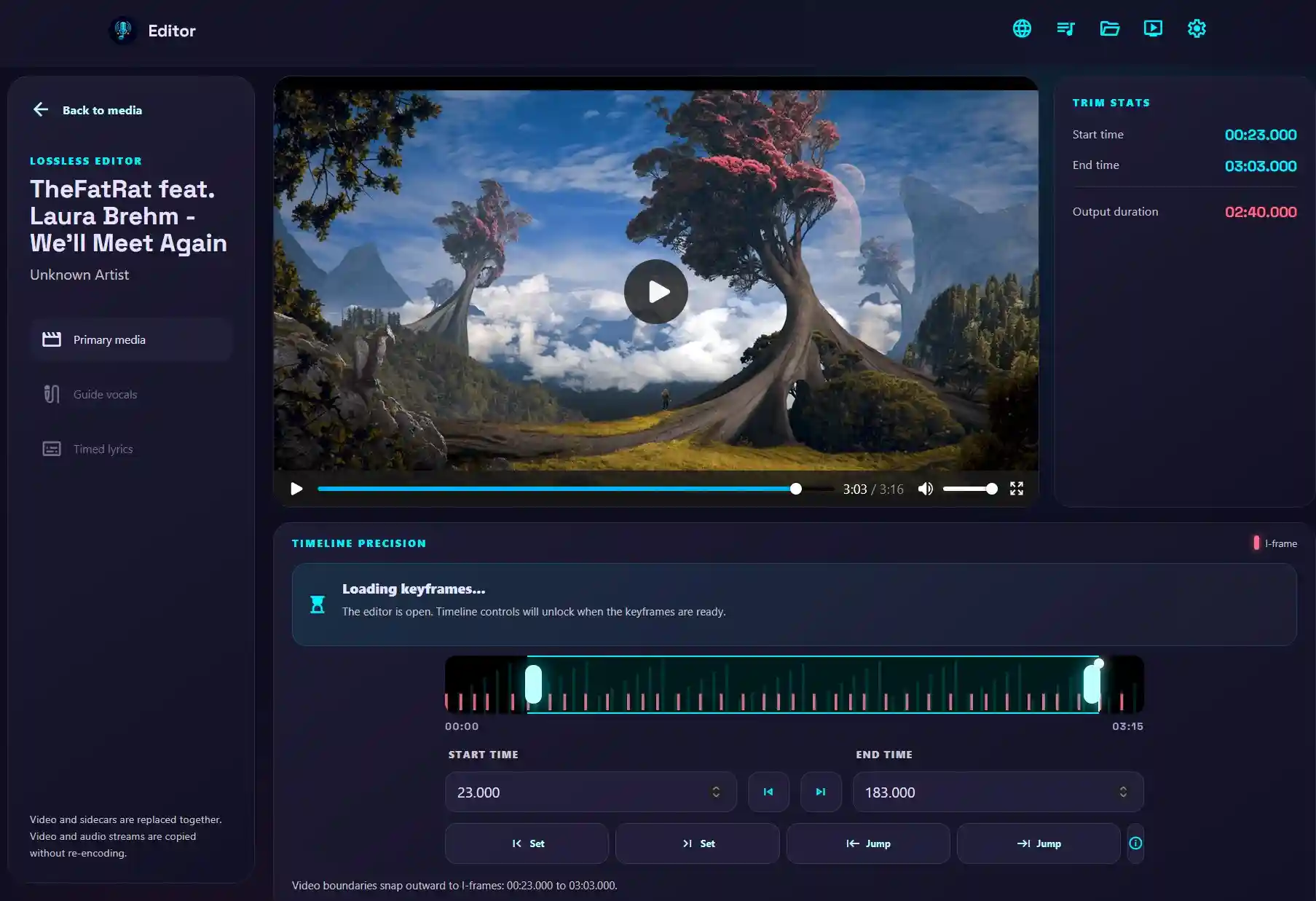
The editor displays a timeline with all I-frames where a cut can occur.
- Drag the handles to adjust the start and end time. Each handle snaps to the nearest I-frame.
- Specify a start and end time in the input boxes. The application chooses an I-frame that includes each specified time.
- Play the video and use the Set and Set buttons to set the start and end points.
- Use the and buttons to jump to the previous or next I-frame.
- Use the Jump and Jump buttons to preview the cut from the in and out points.
Speed up the preview process with keyboard shortcuts
- I / O — set the in and out points for trimming
- [ / ] — move between detected keyframes
- , / . — move the playhead by one frame
- Home / End — move to the beginning or end
Modernize CD+G Formats
CD+G is a traditional karaoke format that displays lyrics as graphics. It is commonly used with an MP3 file as MP3+G. The stage display can play CD+G graphics, but trimming a CD+G file is not supported unless it is converted to video.
Instead of opening the lossless trim editor for a CD+G file, the application prompts you to open Transcode to MP4.
- In the editor, transcode the CD+G graphics into an MP4 video with the MP3 audio.
- Choose Replace the original CD+G file after the MP4 is created to create a new media item while preserving the original CD+G item.