Karaoke Tasks
Queue a premade karaoke video
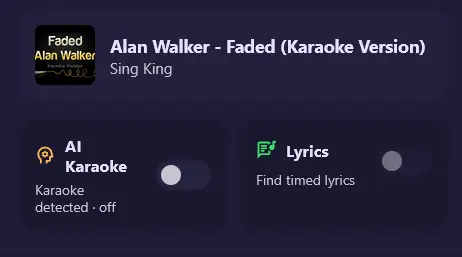
YouTube has a vast library of karaoke videos, including channels such as Sing King. For a popular song, there is a good chance that a karaoke video is already available. This is the easiest way to get started and does not require the Demucs service. However, karaoke style and customization are limited.
- Search for a song. Searching by title and artist is usually sufficient.
- You can also directly paste a YouTube URL into the search box.
Enable parallel YouTube search to search for the original query and a karaoke variant at the same time. This can help find existing karaoke videos.
- The application automatically detects the karaoke video, so no karaoke processing is needed. Queue it and wait for the download to complete.
- The song is added to the queue and appears on the stage once the download is complete.
If downloading fails, please refer to the yt-dlp troubleshooting guide.
Queue a song as another user
Normally, guests use their own devices to queue and can only queue as themselves. On a shared tablet, an administrator can log in and queue as another user, allowing songs from different users to be queued on the same device.
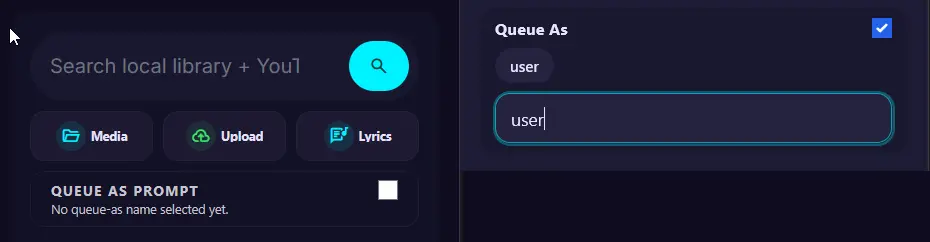
- Enable the Queue as prompt toggle.
- Search for a song normally.
- On the pre-queue page, select an existing user or enter a new name to queue as.
Control queue remotely
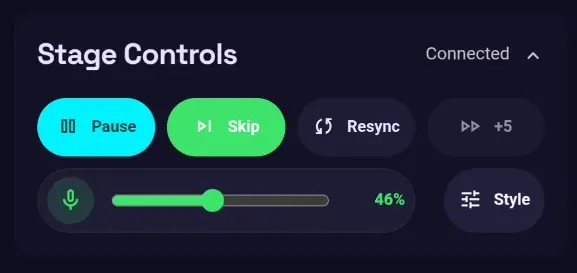
It may not be convenient to reach for the keyboard to control the stage device. You can use your own device or the shared device to control the screen in real time. The available options include:
Guest and admin control
Guests can manage their own queued songs, while administrators can queue on behalf of another user and manage the full queue.
As an administrator, you can also remove or rearrange songs queued by other users.
- Pause/Play: Pause or resume the current song.
- Skip: Skip the current song.
- Resync: Recover from vocal and instrumental desynchronization.
- FF+5: Fast-forward the current song by 5 seconds.
- Vocals: Toggle the vocal backing track on or off (supported songs only).
- Vocal Volume: Adjust the vocal volume (supported songs only).
- Style: Adjust advanced lyrics customization (supported songs only).
Use your own song
If you have downloaded karaoke videos or have trouble downloading using the application, you can upload your own media to the library.
The application supports a variety of commonly used media formats:
- Video: MP4, WEBM, MKV, MOV, AVI, M4V
- Audio: MP3, WAV, M4A, FLAC, AAC, OGG, OPUS, WEBM
- Other: CDG (legacy karaoke format), ZIP (exported karaoke package from the application)
-
Using the application
- Open the Media page and click Upload.
- Select a media file and optionally provide a title and artist.
- For advanced karaoke processing options, refer to the Create karaoke from uploaded files.
-
Externally
- Copy the media file to the
MEDIA_PATHdirectory on the host. - If running the server remotely, you can use
SCP/SFTP(WinSCP/FileZilla),SMB/NFSnetwork shares - Click on scan library in the Media page to detect the new media.
- Copy the media file to the