Create AI Karaoke
The application supports several ways to create karaoke, from downloading a music video to processing your own files. Choose the workflow that best matches your source material and the amount of processing you want to use.
Contents
- Create karaoke from a music video
- Create karaoke from a lyrics video
- Create karaoke from uploaded files
- Modify existing video
- Add vocals to a premade karaoke video
- Fastest or best-case karaoke
Create karaoke from a music video
Creating karaoke from a music video provides the most immersive experience and supports customizable lyrics styles. It is also the most processing-intensive option. For faster processing, use the Demucs service on a GPU-capable device.
1. Select a music video
- Search for a song and choose a music video from the search results.
- The application does not automatically identify whether the video contains lyrics or karaoke. It therefore enables both vocal separation and lyrics processing.
2. Configure karaoke options
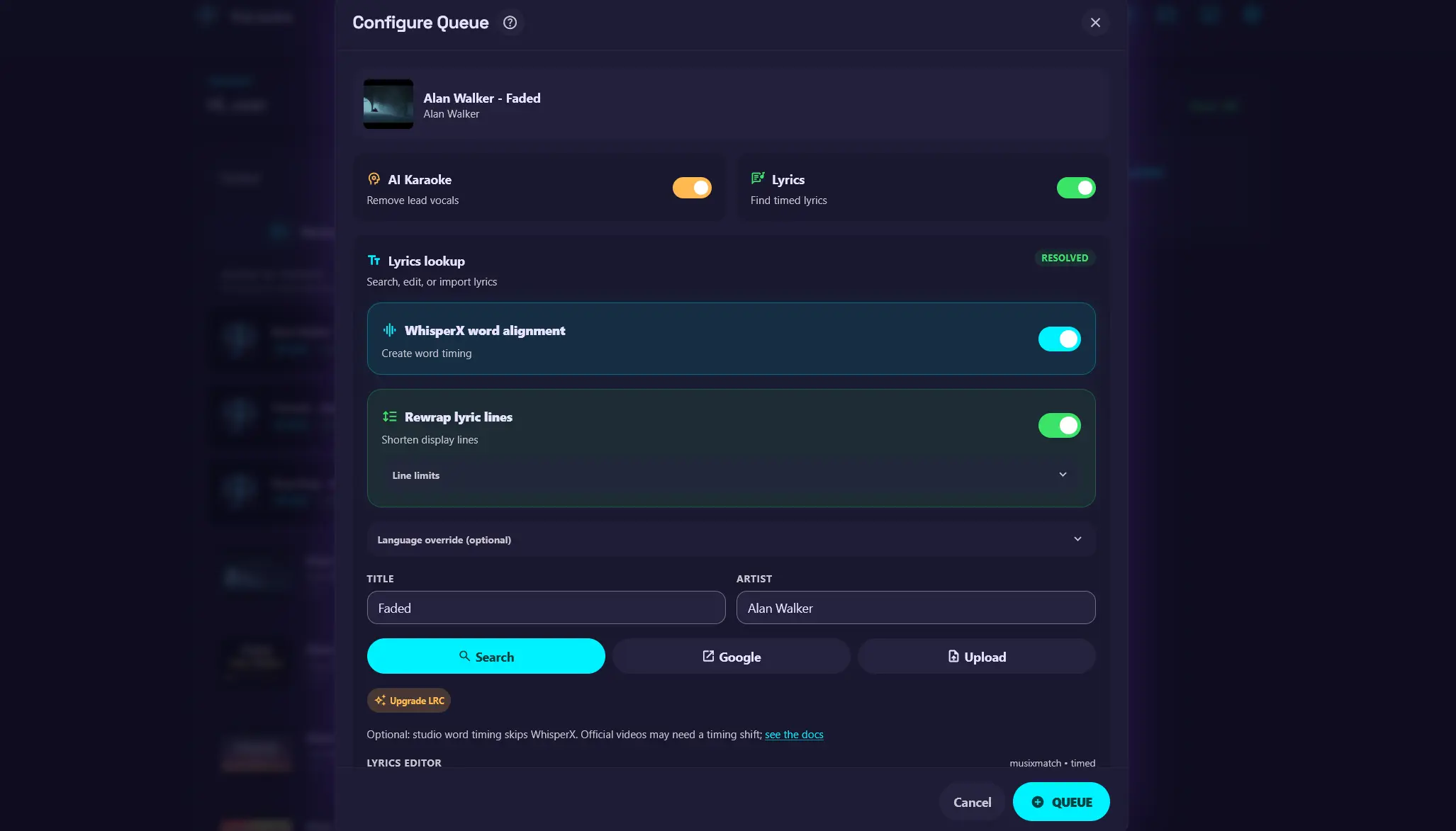
The pre-queue page provides the following options:
- WhisperX word alignment creates word-synchronized lyrics for karaoke.
- Rewrap lyric lines changes the maximum number of characters per line before wrapping to the next line.
- For Asian languages, especially Chinese, Japanese, and Korean (CJK), adjust
Max CJK Charsinstead.
- For Asian languages, especially Chinese, Japanese, and Korean (CJK), adjust
- Language override specifies the language for WhisperX alignment. Setting this skips automatic language detection and any configured default language.
3. Add lyrics
WhisperX requires lyrics to create karaoke timing. The application searches the configured lyrics providers.
- It first uses Last.fm to infer the title and artist from the video title. If the result is incorrect, enter the title and artist manually before searching.
- The Google button opens a new tab and searches for
Artist - Title lyrics. Copy the result into the lyrics editor. - You can also upload an
.lrcor.txtlyrics file. - Edit the lyrics as needed before adding the song to the karaoke queue.
Upgrade LRC lyrics
Some lyrics can be upgraded to TTML (Timed Text Markup Language), typically sourced from Apple Music. TTML already contains word-synchronized lyrics, which can provide precise karaoke timing and skip WhisperX processing.
If the upgrade fails or returns the wrong lyrics, fall back to the standard lyrics result.
4. Process the song
After the song is queued, the application downloads the source, separates the vocals, aligns the lyrics, and prepares the karaoke media for the stage.
If processing fails
If downloading fails, see the yt-dlp troubleshooting guide. For vocal separation problems, see Vocal separation is very slow. For lyrics alignment problems or incorrect synchronization, see WhisperX alignment troubleshooting and WhisperX synchronization troubleshooting.
Create karaoke from a lyrics video
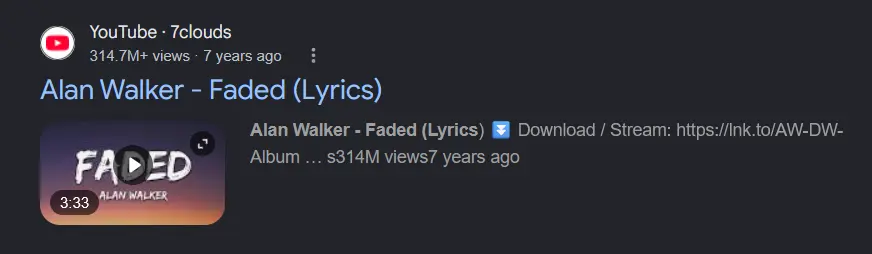
Lyrics videos are widely available on YouTube. They usually do not contain word-synchronized lyrics, but they may provide visual styles and backgrounds that some users prefer. They also skip WhisperX alignment, which reduces processing time on CPU-only devices.
1. Select a lyrics video
- Search for a song and choose a lyrics video from the search results.
- The application detects the lyrics video and enables only vocal separation, skipping lyrics processing.
2. Wait for vocal separation
The song requires vocal-separation processing. It appears on the stage after processing is complete.
Lyrics videos are not always well synchronized
Lyrics videos usually contain line-synchronized rather than word-synchronized lyrics. They also often prioritize visual effects and animation, so transitions between lines may not match the music precisely. This is less noticeable when you are familiar with the song.
If processing fails
If downloading fails, see the yt-dlp troubleshooting guide. If vocal separation fails or takes too long, see Vocal separation is very slow.
Create karaoke from uploaded files
Creating karaoke from an uploaded MP3 file with album art can provide an immersive and customizable experience. Uploading is also useful when the application cannot download a video, when another device or network is better suited for downloading, or when you want to use a file from your own library.
1. Upload a file
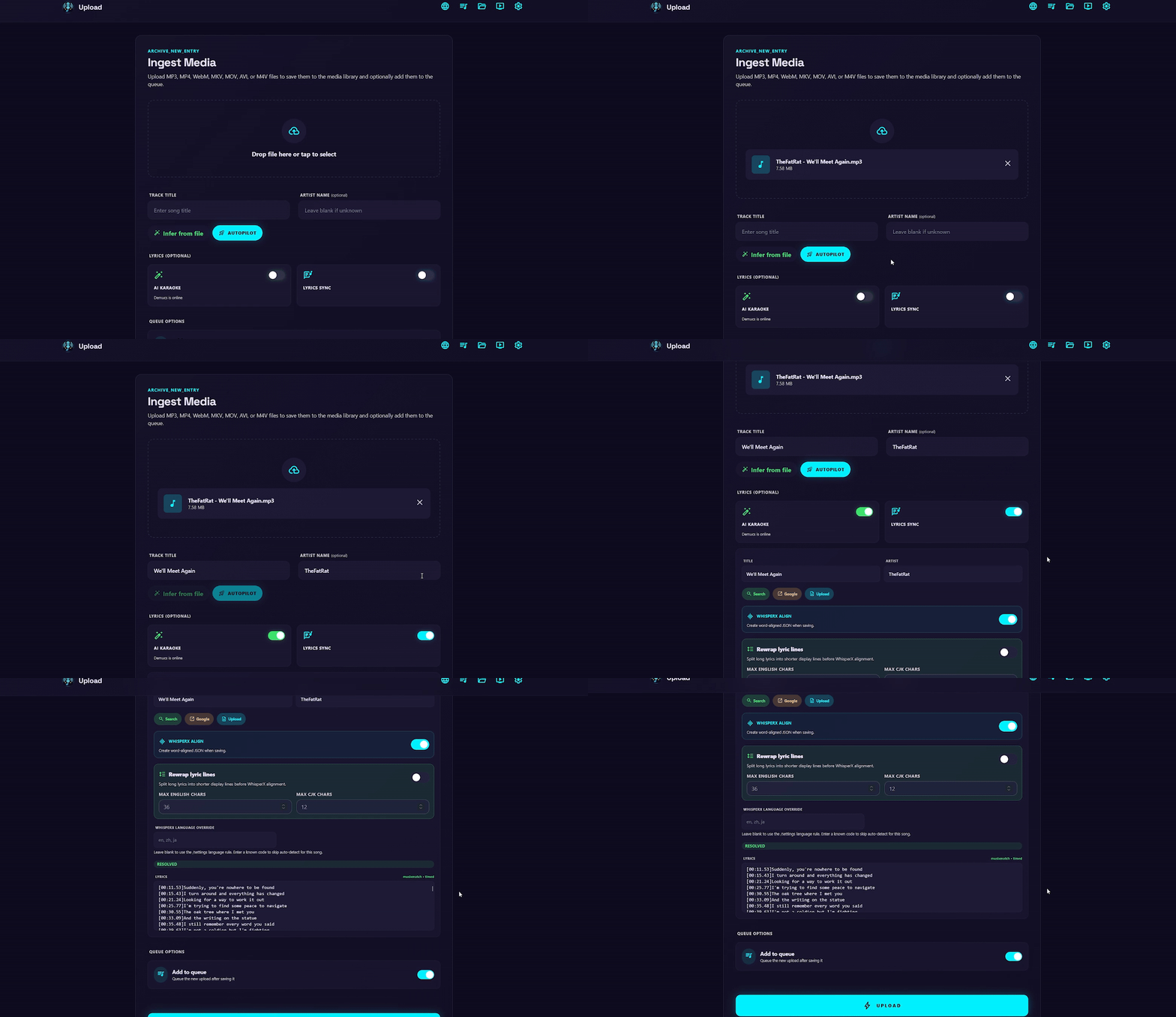
Click the upload area or drag and drop a file into it.
Upload Autopilot
Autopilot prepares the default karaoke options with one click:
- Infers track information from the filename.
- Searches for and downloads lyrics.
- Fills in the title, artist, and karaoke processing options.
- Creates optimized karaoke processing settings before submission.
2. Configure the uploaded song
Refer to Create karaoke from a music video for the available lyrics options. The same options are available in the upload flow.
3. Choose where to add the song
Enable Add to queue to add the song to the queue and show it on the stage after processing is complete. Leave it disabled to add the processed song to the library for later use.
If processing fails
If vocal separation fails or takes too long, see Vocal separation is very slow. If lyrics alignment fails, takes too long, or produces incorrect synchronization, see WhisperX alignment troubleshooting and WhisperX synchronization troubleshooting.
Modify existing video
The application can run vocal separation and lyrics alignment on existing media in the library.

1. Open the media editor
- Open the Media page and click Edit for the media item.
- On the Edit Media Details page, modify the title, artist, or karaoke processing options.
- Use Auto to infer the title and artist from the filename using Last.fm.
- This changes the name in the library. Enable Rename on disk if the filename should also change.
Rename on disk
The file is renamed only after you click Rename. If you only want to change the title, artist, or filename without processing the media, do not modify AI Karaoke or Lyrics Sync.
2. Configure lyrics and processing
Refer to Create karaoke from a music video for the available lyrics options.
Lyrics Sync and WhisperX
When only Lyrics Sync is enabled and lyrics are provided, the application saves the lyrics file without running WhisperX. Edit the media again and enable WhisperX Align when you want to create synchronized lyrics.
If processing fails
If vocal separation fails or takes too long, see Vocal separation is very slow. If lyrics alignment fails, takes too long, or produces incorrect synchronization, see WhisperX alignment troubleshooting and WhisperX synchronization troubleshooting.
Add vocals to a premade karaoke video
If you prefer the lyrics styles of a premade karaoke video, such as one from Sing King, but want backing vocals for practice, you can use the application to add vocals to the video.
Automatic vocal alignment requires vocal-sync
The application can automatically align the original karaoke instrumental with the separated instrumental from the original music video when the requirements are met. Install the vocal-sync extra, or use the vocal-sync Docker image, to enable automatic vocal alignment.
1. Open Vocal Sync
- Open the Media page and click Edit.
- Select Add Vocals to open the Vocal Sync page.
2. Prepare and align the vocals
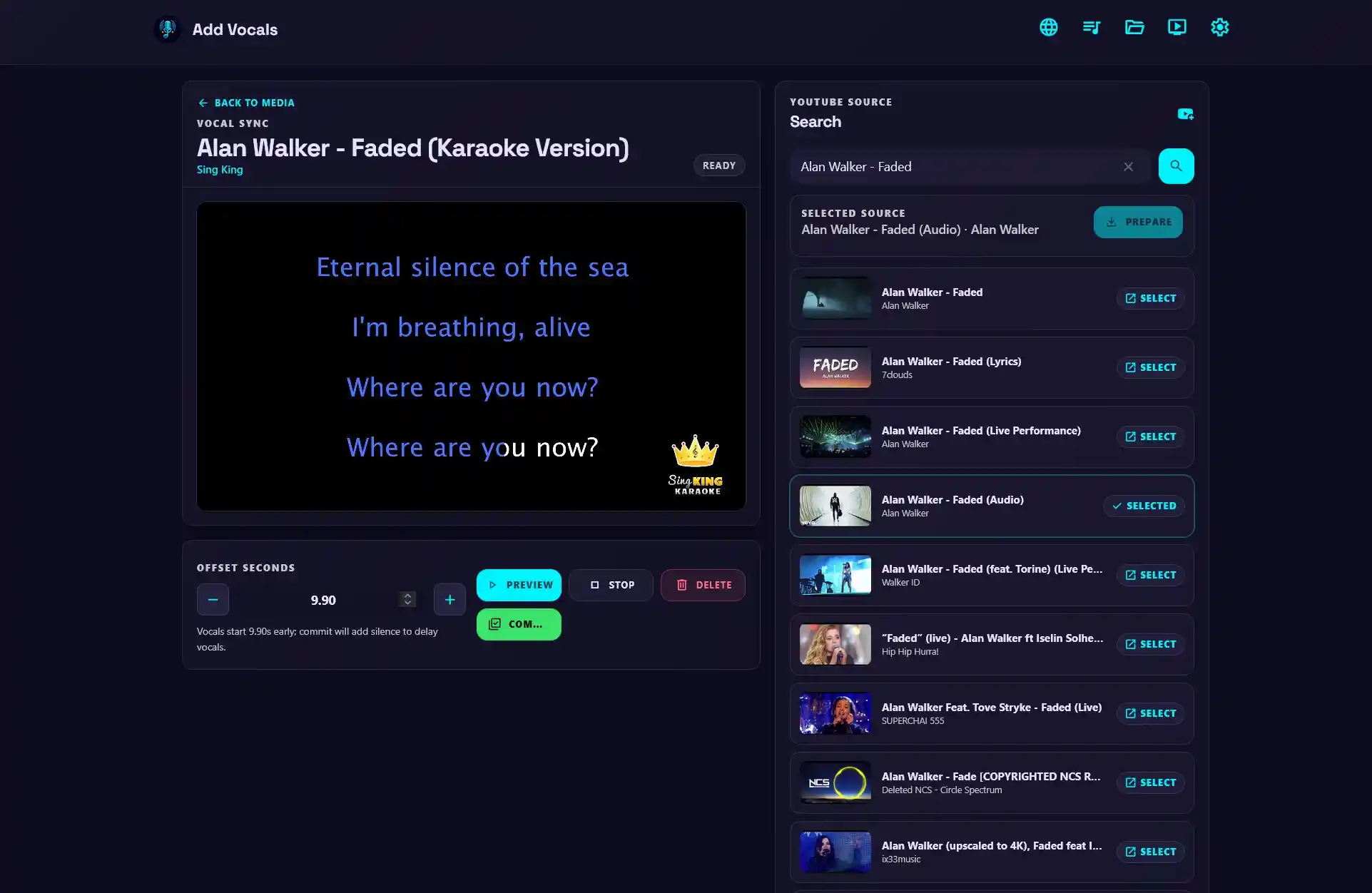
- Search YouTube or upload your own files, then click Prepare.
- The application separates the vocals and instrumental and prepares a preview.
- When
vocal-syncis available, the offset is calculated automatically.
- When
- Use the + and - buttons to adjust the offset, then click Preview to check the result.
- A + value delays the vocals. Increase it if the vocals begin before the instrumental.
- A - value moves the vocals earlier. Decrease it if the vocals begin after the instrumental.
Use Preview for playback
Do not use the media player controls for this check; they play only the original video. Use Preview and Stop instead.
3. Commit the result
Click Commit when the alignment is satisfactory.
Fastest or best-case karaoke
If you do not have a CUDA-capable GPU for the Demucs service, you can still use the AI features with a CPU.
CPU processing
Use Sherpa+Spleeter for vocal separation.
- The Demucs service downloads the models according to your configuration.
- Sherpa+Spleeter runs well on a CPU and is significantly faster than Demucs.
- Separation quality is not as good as Demucs.
TTML lyrics upgrade
There is no easy CPU-only alternative to WhisperX. A typical three-minute song may take one to two minutes to separate. However, some songs have a TTML lyrics upgrade available. TTML already contains word-synchronized lyrics and skips WhisperX processing.
TTML timings are official music-lyrics timings, typically matching the original song release rather than a particular video edit. They are not a good fit for music videos with intros, outros, or other edits because the lyrics can become offset from the video. Use TTML for non-music videos with the original song timing or for uploaded MP3 files; use WhisperX when the video includes extra or changed sections.
Using Sherpa+Spleeter with a TTML upgrade provides the fastest and best-case karaoke experience on CPU-only devices.